Make a shared home printer easier for everyone to use
· Editorial team dallasnewssarah.com
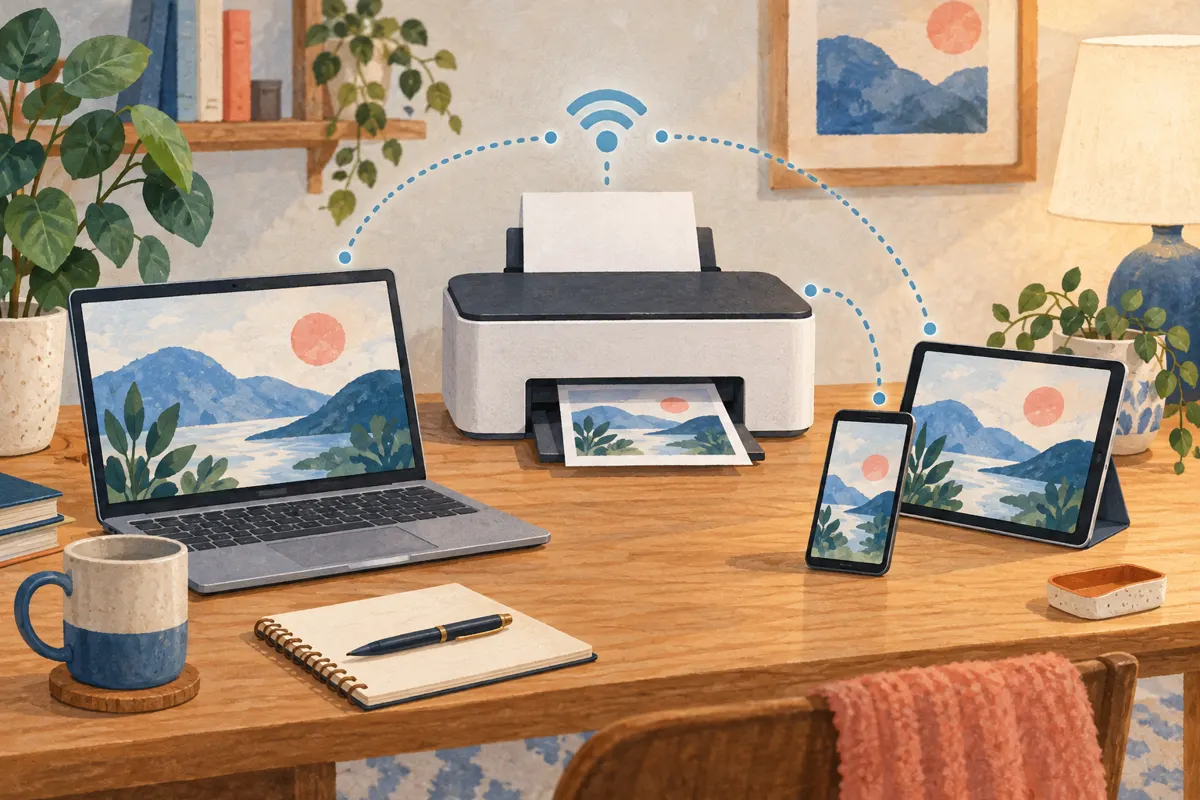
Connect a network-capable printer to your home network, then add it on each computer, phone or tablet that needs to print. Give it a recognizable name where supported and choose everyday printing preferences on each device. This makes the printer easier to find and reduces repeated setup work.
Start with one home network connection
Check your printer’s documentation for its supported connections. For household wireless printing, connect the printer to your home Wi-Fi using its setup controls or the manufacturer’s app. Keep the devices that need to print on that same network. A USB connection to one computer is a different setup from connecting the printer itself to the household network.
- Turn on the printer and check that it has paper and no displayed error.
- Follow the model’s network setup instructions, select your home Wi-Fi network and enter its password.
- Check the printer’s screen or app to confirm that it has connected.
- Connect the first computer or mobile device to the same network before adding the printer.
If the printer reports a weak wireless signal, try placing it closer to the router. Choose a location where everyone can reach the paper tray and collect their pages without moving the printer each time.
Add the printer on each household device
Joining the printer to Wi-Fi is the first stage; each device still needs a way to select it. Finish setup on one device and print a short document before repeating the process elsewhere. That gives you a working starting point if another device has trouble.
- Windows 11: Open Settings, then Bluetooth & devices, then Printers & scanners. Check the installed list first. If the printer is missing, select Add device and choose it when it appears.
- If Windows cannot find it: Allow time for discovery, then use Add a new device manually and follow the prompts.
- Apple devices: If the printer supports AirPrint, connect the device to the same Wi-Fi network and select the printer from the document’s print options.
- Other phones and tablets: Follow the printer manufacturer’s instructions for a compatible printing app or supported printing method.
Windows supports many printers without a separate manufacturer installer. After adding yours, check Windows Update for available driver updates, especially if some printing features are missing.
Use a name everyone recognizes
A proposed household naming approach is to use a simple location-based label, such as “Hallway printer,” wherever the printer or device settings allow renaming. If a rename applies only on one computer, use the same label when setting up the others. Keep the model name in a short household note so it is still easy to identify for support.
If several printer entries appear, try the intended entry with a one-page document before removing anything. Windows lets you remove an installed printer through Printers & scanners. Remove an obsolete entry only after confirming which entry works.
Choose practical defaults on each computer
Set the shared printer as the default on computers that normally use it, and review printing preferences on each device. Do not assume that a preference chosen on one computer will also be selected on another.
- Match the paper size to the paper normally loaded in the tray.
- Choose black-and-white output for routine documents if color is rarely needed.
- Use two-sided printing when the printer supports it and it suits household documents.
- Keep one copy as the usual choice and check the page range before sending a long document.
These are starting preferences, not rules for every job. Check the print dialog for photos, forms or documents that require color or single-sided pages.
Check connection and queue problems in order
When a document does not print, check the existing job before sending more copies. Repeated attempts can leave unnecessary jobs waiting in the queue.
- Check that the printer is on, has paper and has no displayed error; check ink or toner supplies too.
- Confirm that the device and printer are connected to the same home network.
- Check that the print dialog names the intended printer.
- Open the print queue in the computer’s printer settings or supported manufacturer app and cancel unnecessary jobs.
- Send one short document again. If Windows still cannot find the printer, return to Printers & scanners and try manual installation.